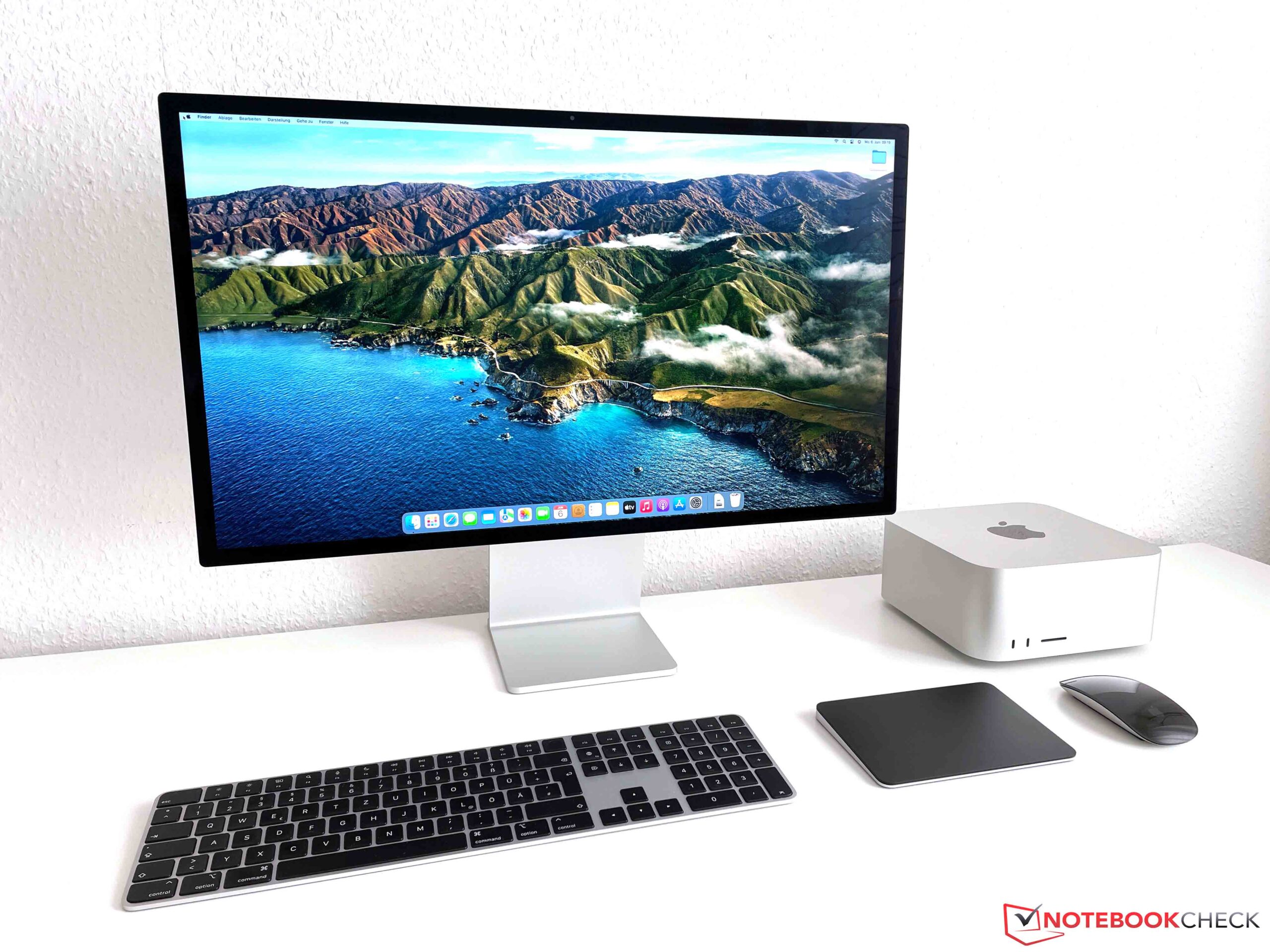

The Mac Studio is Apple’s newest desktop PC, and like the current Mac Mini , the manufacturer has opted for its in-house M1 processors, but in this case, we have the powerful M1 Max versions or the new M1 Ultra, which practically combines two M1 Max chips. Our Mac Studio review unit is equipped with the M1 Max including 32 GPU cores, 64 GB of shared RAM, and a 2 TB PCIe 4. 0 SSD; Apple charges 3,679 Euros (~$3,842) for this configuration (not including input devices).
For comparison: A MacBook Pro 16 with the same hardware and a Mini LED panel costs around 4,700 Euros (~$4,908). In addition, we’ll also review the new Studio Display, Apple’s new 27-inch monitor with a 5K resolution and its own A13-SoC . The display offers several USB-C ports as well as Thunderbolt, so besides peripherals (mice, keyboards, hard drives), you can also directly connect a laptop via Thunderbolt, which will then be charged at up to 96 watts.
This doesn’t only work for MacBooks, but also for Windows laptops. Our review model of the Studio Display is the standard version, which costs 1,749 Euros (~$1,827); it comes with the regular reflective glass and the tilt-adjustable stand. Since we only review desktop computers rarely, Apple’s MacBook Pro models in particular will have to serve as comparison devices here.
At this point, we also recommend taking a look at our previous review articles, where we’ve been able to review almost all versions: Note: We’re reviewing the two products together, namely the Mac Studio and the Studio Display, but they must naturally be purchased separately from each other. It’s also fine to use the Mac Studio with other external displays; at the same time, the Studio Display can also be used with MacBooks or other laptops/PCs (more on that later). The new Mac Studio is a larger version of the familiar Mac Mini .
Its shape with the rounded corners is identical, and the length of the sides is exactly the same, but the Mac Studio is considerably taller at just under 9. 6 cm. The power adapter is already integrated, and the weight of our version with the M1 Max is 2.
695 kg; Apple even specifies that the version with the M1 Ultra weighs a whopping 3. 7 kg. As usual, workmanship is of very high quality, and the aluminum case looks very nice.
The Mac Studio only comes with the corresponding power cord. The front houses the status LED, two USB-C ports (or 2x Thunderbolt 4 on the Mac Studio with the M1 Ultra), as well as the card reader, the power button. The rest of the ports are on the back.
These are identical on both versions though, and they include four Thunderbolt 4 ports (USB-C), two regular USB-A ports, and a 10 GB Ethernet port. In addition, the audio output, and the HDMI 2. 0 output are also located here.
In total, the Mac Studio with the M1 Max can support four external displays: One 4K display at 60 Hz via the HDMI output, as well as up to three 6K displays via USB-C. The Mac Studio with the M1 Ultra supports a total of up to five external displays (1x 4K/60 Hz via HDMI, and 4x 6K via USB-C). The new Studio Display is Apple’s latest external display with a 27-inch diagonal size and a 5K resolution (5,120×2,880 pixels, 16:9, 218 DPI), which corresponds exactly to the old iMac 27.
Once again, the design with the rounded edges and the flat sides already reminds us of the Pro Display XDR as well as the new iMac 24 , but the display is also surprisingly thick at 3. 1 cm (more than the Pro Display XDR and the iMac as well), which is naturally due to the integration of the Apple A13 SoC in addition to the speaker system. The Studio Display’s interior also looks more like that of an old Intel iMac, which can be seen clearly in the teardown done by our colleagues at iFixit .
The speakers and cooling vents are distributed across the entire width at the top and bottom. The package only includes a Thunderbolt cable (1 m); the power cord is attached to the display and can’t be removed by the user. The Studio Display weighs 6.
292 kg and has no controls, not even an on/off button. We are reviewing the normal version of the Studio Display that costs 1,749 Euros (~$1,827), which is the one with the standard glossy glass. Just like with MacBooks, Apple calls this an anti-reflective coating, and at least subjectively, the degree of reflection is very similar, which is quite low compared to many other glossy displays.
Nevertheless, you should take a look at your surroundings beforehand. Background light sources or windows will cause reflections (see picture). If you want to play it safe, though, you can also choose the version with nano-texture glass, which is a matte surface.
We were able to review the nano-texture glass on an iMac 27 (year 2020 model) some time ago, but the subjective quality impression was slightly affected here, and the image simply wasn’t as vibrant as on the normal version. Unlike the Pro Display XDR, the Studio Display comes with a tilt stand by default. However, Apple also offers a tilt and height-adjustable stand, as well as a VESA adapter as options, and the buyer has to decide on a variant at the time of purchase.
The VESA adapter is available at no extra charge, but the height-adjustable stand requires a hefty price premium of 460 Euros (~$480). The ports also match the Pro Display XDR, since there’s a Thunderbolt 3 port that also serves as an input source, as well as three additional USB-C ports (3. 2 Gen.
2, 10 Gbit/s) for additional peripherals. Laptops can be charged at up to 96 watts via the Thunderbolt port. This is ideal for all iPads, MacBook Airs, and MacBook Pro models up to 14 inches, which are shipped with a power adapter of a maximum of 96 watts anyways.
It goes without saying that the Studio Display can also be used with the MacBook Pro 16 or older 15-inch versions, but you’ll need to have the device connected to the power adapter as well in these cases in order to get full performance. The connection to the Mac Studio is also done via the Thunderbolt cable, and the whole setup is very easy. As soon as the Mac is turned on, the image appears too; overall, the setup simply works without issues and is extremely easy to carry out.
As usual, the brightness sensor works well, and you get used to the True Tone technology (automatic adjustment of the color temperature based on the ambient light) very quickly. Theoretically, input devices can be connected directly to the display, but only if you use a wired connection or a wireless USB dongle; Bluetooth input devices need to be connected to the Mac Studio, the MacBook, or the iPad, respectively. As we mentioned earlier, the Studio Display can be used with Apple MacBooks, but you can also simply connect a Windows laptop via USB-C.
The Studio Display delivers a maximum of 96 watts here as well, which is sufficient for almost any compact subnotebook. We tried it out with an Asus Zenbook S 13 connected via USB 4, for example. Compared to Apple source devices, however, the range of functions is limited.
The webcam and speakers work, and you can also connect input devices to the Studio Display (but only using a cable/dongle), but things like automatic brightness control or True Tone don’t work. In any case, the fact that a matching Studio Display color profile is automatically installed is positive, and the image quality corresponds to the one observed when using Apple devices, according to our measurements (more on that later). The full-fledged card reader at the front of the Mac Studio is on par with the latest MacBook Pro models in terms of speed.
With our reference card (Angelbird AV Pro V60), we were able to measure a transfer rate of 121 MB/s when copying image files. The M1 Max in the Mac Studio supports Wi-Fi 6, but still only at 80 MHz. However, in combination with our new reference router from Asus, performance is slightly better than that of the MacBook models with the M1 SoCs, and transfer rates are between 850 and 950 MB/s.
Nevertheless, you should be able to expect at least Wi-Fi 6 at 160 Hz or the latest Wi-Fi 6E standard in a recent device that costs more than 3,000 Euros (~$3,133). The Studio Display offers a 12 MP camera with an ultra-wide angle (f/2. 4 aperture), as well as the tracking mode Center Stage.
This feature was introduced with the iPad Pro 2021 , which was also equipped with the 12 MP wide-angle camera. Of course, quality is better compared to other laptop webcams, and the camera is very well suited for video calls. The Center Stage function also works well, allowing the user to move around in front of the camera while staying in focus.
The microphones also worked well in our test, and voice control via Siri was reliable too. Apple continues to offer the usual input devices, but these have to be purchased separately from the Mac Studio. The major advantage is the perfect Apple integration including Touch ID.
The Magic Trackpad works very well and is very intuitive, especially if you’re already familiar with using it on a MacBook. The Magic Mouse also works well; the only inconvenience is the Lightning port for charging that’s at the bottom of the mouse. Things get a bit more problematic with the keyboard, however, since the key travel is very short for desktop input, and at least our sample of the keyboard sounded a bit rattly when typing.
However, the keystrokes themselves are precise, and the typing experience is basically on par with the latest MacBook Pro models. One clear minus point, though, is the lack of backlighting. Although convenience features such as Touch ID are practical, there’s certainly still room for improvement considering that this is a desktop keyboard.
We already talked about the Studio Display’s base specifications, and overall, the technical specs of the 60 Hz IPS display aren’t breathtaking considering its high price. However, this doesn’t take away from the great subjective image quality, because content is razor-sharp, and images simply look brilliant. But unlike the MacBook Pro models (14 and 16 inches) with the new Mini LED panels, HDR content is not supported.
Apple specifies a brightness level of up to 600 nits, something that we can also confirm in our measurements (571 cd/m² on average). That said, the high brightness is also accompanied by a high black level, as 0. 58 cd/m² is too high for a high-quality display; as a result, the contrast is only ~1,000:1.
Screen bleeding is only minimally noticeable, even at full brightness, though, and we couldn’t detect any PWM. Moreover, response times are very good for a normal IPS panel. The viewing-angle stability of the IPS panel is very good as well.
The Studio Display covers the P3 color space almost completely, but other reference modes are also available when connected to Macs. The image reproduction is already extremely good out of the box, and apart from a minimal blue tint in the grayscale, which isn’t visible in practice, there’s nothing to complain about. The average DeltaE 2000 deviations for the grayscale and all colors are already well below the important mark of 3.
This quality is also maintained when using a Windows laptop as a source. The Mac Studio comes in two base configurations, one with the M1 Max SoC, with which we’re familiar from the MacBooks (with either 24 or 32 GPU cores), and the other with the new M1 Ultra. The M1 Ultra combines two M1 Max SoCs , something that Apple calls Ultra Fusion.
This doubles the number of CPU and GPU cores. Altogether, you can choose between four SoC models, but only the M1 Ultra offers the possibility to get up to 128 GB of RAM. The storage capacity ends at 8 TB, and once again, Apple charges a lot for the upgrades: The top Mac Studio model (M1 Ultra, 128 GB of RAM, and 8 TB of SSD storage) costs 9,200 Euros (~$9,608).
In terms of sheer performance, there’s no difference between the Mac Studio and the MacBook Pro 16 with the M1 Max, but the desktop machine forgoes the MacBook’s additional performance modes (Performance Mode and Quiet Mode); however, a Quiet Mode in particular might not have been a bad choice in view of the constantly running fans. As in our review of the MacBook Pro 16, we can get a maximum consumption of around 84 watts (package power) out of the M1 Max with 32 GPU cores, with the CPU requiring a maximum of 30 watts and the GPU a maximum of 44 watts. Performance is also maintained at a constant level under sustained load.
Since the fan still has a lot of headroom, we assume that the M1 Ultra’s roughly 170 watts can be cooled adequately as well, but the two fans will likely have a lot more work to do then. As for the processor, we can be brief because we already know the M1 (regardless of whether it’s the Pro or Max version) with 10 cores very well, and we just analyzed it in our comprehensive Efficiency Article on current mobile processors . The CPU consists of a total of three clusters, an efficiency cluster with 2 cores, as well as two performance clusters with 4 cores each.
The cores don’t support Hyper-Threading and can therefore “only” process 10 threads in parallel. Nevertheless, performance is very good and on par with other mobile processors that consume even more power. However, this is also the tricky part, because the Mac Studio is not a laptop.
Although the efficiency remains very good, the M1 Max is clearly inferior to other desktop processors and mobile processors in terms of performance. Things would look different for the M1 Ultra if we assume that it has twice the performance. We’ll use Cinebench R23 for the comparison, since this benchmark runs natively on the Mac (R15 and R20 have to be emulated via Rosetta 2).
The 20-core CPU with a consumption of ~60 watts would be faster than the Intel Core i7-12700H with around 120 watts here. The Mac Studio with the M1 Max is also an extremely responsive machine, and we didn’t notice any problems during the entire test period. Older apps for Intel Macs are emulated smoothly via Rosetta 2, and this usually work very well, but performance can be a bit lower here than with native apps.
A very good example of this are the Adobe applications Photoshop and Premiere Pro, with which we run the PugetBench tests. The benchmarks only work on the emulated Intel versions, which also run well, but the native M1 versions are considerably faster and more responsive overall. The benchmark results should be viewed with a bit of caution for this reason.
However, the Apple desktop performs well and as expected in the native benchmarks like CrossMark or the Browser Benchmarks. All versions of the Mac Studio make use of fast PCIe 4. 0 SSDs, and our test device is equipped with a 2 TB drive, which still offers 1.
98 TB of available storage space for the user after the first startup. The drive achieves very high transfer rates in the benchmarks and doesn’t leave any room for criticism here. The M1 Max version of the Mac Studio comes with a 512 GB SSD by default, the extra cost for the 2 TB version is 690 Euros (~$721), and the upgrade to 8 TB even comes at a price of 2,760 Euros (~$2,882).
Further SSD benchmarks are available here . The Mac Studio offers a modular SSD and even another SSD slot, but it can’t be used for an expansion so far. In addition, you have to do a lot of tinkering and disassembly (including removing the power supply) to even get to the SSD.
The 32-core GPU in the M1 Max has four clusters with 8 GPU cores each, which can consume up to 44 watts. Once again, performance is on par with the MacBook Pro 16 with the M1 Max, but due to the limitation to 60 Hz, some benchmark results (e. g.
3DMark Wild Life Extreme) are only meaningful in Unlimited mode. In the synthetic tests, the GPU is partly on par with a GeForce RTX 3070 that consumes considerably more power, though. The advantage of the GPU is, of course, the shared memory, which means that much more VRAM is available for large projects.
Gaming continues to be a challenge. Some titles run via Rosetta 2, while others run natively; and there are additional solutions, such as CrossWare, that allow you to play Windows titles, such as The Wichter 3 . However, we refer to our reviews of the MacBook Pro 16 and MacBook Pro 14 here, in which we’ve delved into this topic more intensively.
The top half of the Mac Studio is completely taken up by the cooling system, which consists of two fans and a huge heat sink. We didn’t experience any irritating fan noise in our review unit as some reports have mentioned, but the two fans always run at a constant 1,300 rpm. This is definitely impressive since it doesn’t change even after an hour of maximum load (SoC temperature ~78 °C (~172 °F)), but we’re not sure if this would really be necessary even under light load, especially in a direct comparison with the MacBook Pro 16 M1 Max , which frequently runs silently.
An optional power-saving mode like on the MBP, which resulted in the fans being deactivated, would have certainly been useful here. Although the constant noise is by no means annoying at just under 29 dB(A), it’s audible, and with such an efficient chip, the constant noise comes across as a bit unnecessary. The two fans can reach a maximum of 3,500 rpm, but we could only manage this using an additional software.
The small cube gets quite loud at 59. 1 dB(A) here, and it also surpasses most full-fledged gaming laptops. The Mac Studio with the M1 Ultra uses the same fans, but instead of an aluminum heatsink, it comes with a copper one, which is why the weight is also significantly higher.
While the Studio Display has two fans as well, they’re not audible. Needless to say, surface temperatures aren’t as important for desktop computers and displays as they are for laptops, but we can also give the all-clear here because it doesn’t really get hot anyway. The top side of the Mac Studio heats up to around 36 °C (~97 °F) in the stress test, as the heat sink is directly beneath it.
We register around 40 °C (~104 °F) directly at the fan outlet, meaning that everything’s within safe limits. The Studio Display also shows a hotspot on the back, but 30 °C (~86 °F) is absolutely fine. Let’s start with the Mac Studio itself, which also features an integrated speaker.
It’s not bad at all, and it can certainly rival some laptops, but of course, it doesn’t come close to the Studio Display’s sound quality. Apple has installed a system with six speakers and 3D audio support in the Display, which is also basically what we’ve seen in the MacBook Pro 16 . In fact, the measurement results are very similar as well, but subjectively, the Display naturally has the advantage of having a larger case, and the sound seems a bit more powerful as well as broader.
Overall, the audio performance is really very good, and most users will probably be able to do without external speakers. The power consumption measurements don’t show any surprises, and we’re roughly on par with the MacBook Pro 16 M1 Max if you subtract the power consumption of the Mini LED panel. We were able to get a maximum of 114 watts out of the Mac Studio in the stress test, whereby consumption always fluctuates a bit due to Unigine Valley’s different sequences, but that’s normal.
In idle usage, power consumption is just under 12 watts, while this value drops to 1. 8 watts in standby mode. The Studio Display itself is between 17-57 watts depending on the brightness level, and it still consumes 0.
28 watts when turned off. Overall, the new Mac Studio leaves a good impression. Its performance is very good, there are many ports, and the interaction with the Studio Display and Apple’s proprietary input devices simply works flawlessly.
However, it’s also noticeable that the Mac Studio’s cooling was developed for the M1 Ultra, because the two fans have an easy time with the M1 Max, and even in the stress test, we couldn’t get more than a quiet hiss out of the device. Nevertheless, the fans are always spinning, even in idle usage; a silent operation would certainly be possible here as well. The Studio Display is comparable to the old iMac 27 in terms of raw display specifications, which isn’t a bad thing, of course, but you can certainly get more for the price from the competition.
You’d have to do without some of the convenience features in that case, though. The speakers are also very good for a display. Especially for use with a MacBook (ideally up to a MacBook Pro 14 , since you really only need a cable connection then and no additional power adapter), the Studio Display makes sense if you want to have a bigger screen at home.
You can then simply connect the MacBook via Thunderbolt, which will also charge the device. Although the Studio Display also works outside of the Apple ecosystem, it doesn’t make much sense in our opinion. There are better options here, and also better or larger displays for this price range.
The Studio Display is an interesting complement if you want to use your MacBook or iPad at home with a large screen as easily as possible, and still have the usual convenience features like True Tone as well as a good sound system at the same time. As you would expect from Apple, the hardware isn’t cheap, but the integration works excellently. We’ll try to review a Mac Studio with the M1 Ultra as well, since the cooling system will probably be challenged to a much greater extent here, and the M1 Ultra’s alleged double performance is quite tempting.
At the time of writing, you can find the base model of the Apple Mac Studio in Best Buy’s online store for just under $2,000 (32 GB RAM, 512 GB SSD). Our review configuration (M1 Max with 32-core GPU, 64 GB RAM, 2 TB SSD) can be purchased directly from Apple’s online store , where you’re able to customize the computer to your needs. This configuration will set you back $3,199.
On the other hand, Best Buy seems to have several configurations for the Studio Display , but they’re either listed as “sold out” or “coming soon” at the moment. You can still buy the Studio Display directly from Apple , with the base configuration that comes with the regular reflective glass and the tilt-adjustable stand (the same as our review configuration) costing $1,599. .
From: notebookcheck
URL: https://www.notebookcheck.net/Apple-Mac-Studio-2022-M1-Max-and-Studio-Display-in-review-The-perfect-combination-for-content-creators.628537.0.html