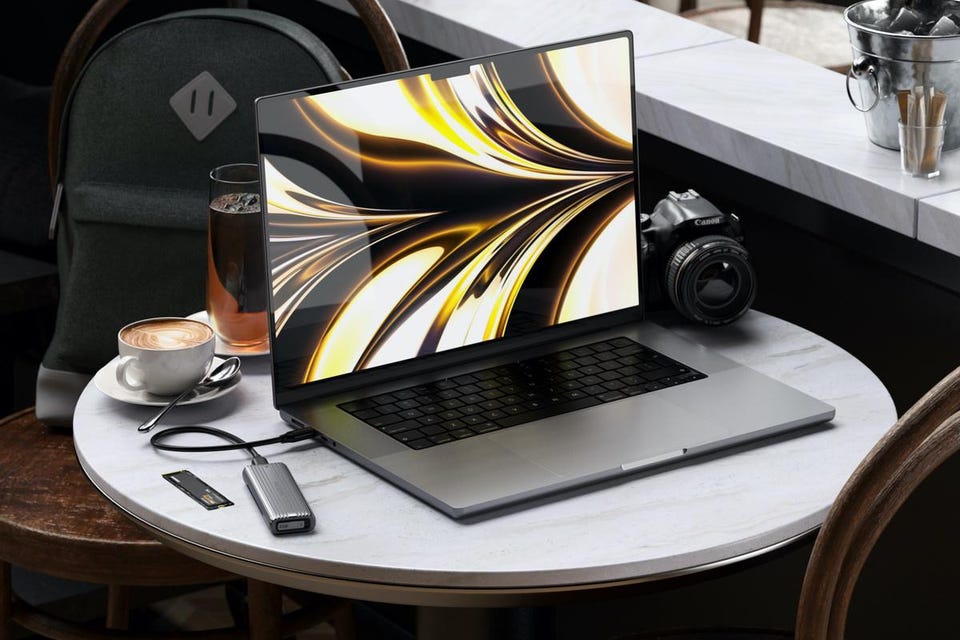

Consumer Tech This Satechi SSD Enclosure Is A Cost-Effective Way To Boost An Apple Mac’s Storage Mark Sparrow Senior Contributor Opinions expressed by Forbes Contributors are their own. Technology journalist specializing in audio, computing and photography Following New! Follow this author to stay notified about their latest stories. Got it! Sep 18, 2022, 06:00am EDT | New! Click on the conversation bubble to join the conversation Got it! Share to Facebook Share to Twitter Share to Linkedin The Satechi USB-C Aluminum tool-free enclosure is a great way of externally housing an M.
2 NVMe or . . .
[+] SATA SSD. Satechi It’s a fact that when you buy an Apple Mac, it will come with a measly amount of storage unless you’re prepared to pay through the nose, thanks to the silly prices Apple charges for extra storage. Furthermore, unlike PCs, newer Macs can’t have their internal storage upgraded because Apple’s storage chips are soldered directly on the motherboard instead of using a connector like SATA or NVMe.
So how can you get more storage for your Mac at a sensible price? Fortunately, fast SSD storage in SATA or NVMe formats can be had for very reasonable prices and you can slot these SSDs into an external enclosure that can be plugged into your Mac’s USB port. It’s easy to do and you’ll save a heap of cash. Satechi recently announced its USB-C Aluminum Tool-Free Enclosure for housing M.
2 PCIe NVMe and SATA SSDs. It takes both types of SSD, although I’d suggest going for NVMe as there’s more choice and it’s a faster standard. This cute little enclosure from Satechi is beautifully made from aluminum and is ribbed on the outside to ensure the SSD inside stays cool and runs efficiently.
The new Satechi USB-C Aluminum tool-free enclosure for housing M. 2 PCIe NVMe and SATA SSDs is a . .
. [+] great way of adding storage to your computer. Satechi The Satechi USB-C enclosure doesn’t require any tools to set up.
Just click the catch on the base of the drive and slide it out. Then get a suitable SSD and slot it in, first sticking on the silicone heatsink Satechi provides in the box. This strip of material sticks on the underside of the SSD to help dissipate any heat that builds up in the SSD’s memory chips.
MORE FOR YOU Google Issues Warning For 2 Billion Chrome Users Forget The MacBook Pro, Apple Has Bigger Plans Google Discounts Pixel 6, Nest & Pixel Buds In Limited-Time Sale Event To test the enclosure, I ordered a Lexar NM620 NVMe SSD with a capacity of 500GB. I could have gone bigger, but 512GB is a good size for most users. This affordable SSD isn’t the fastest that Lexar makes, but it’s ideal for the Satechi enclosure, which supports Gen 2, USB 3.
2 Gen 2. There are speedier USB 4 and Thunderbolt enclosures available, but they tend to cost a lot more and USB 3. 2 is fast enough for most people.
Once the SSD is installed in the Satechi enclosure, it’s just a case of clicking the casing and drive tray together and you’re ready to plug into your Mac. Satechi provides a USB-C cable in the box, which is suitable for fast data transfers. However, when plugged in, your Mac will probably tell you it can’t read the drive, so you need to initialize it using Apple Disk Utility which you’ll find in the Utilities folder, which is inside your Mac’s Application folder.
I tested the Satechi USB-C enclosure with a Lexar NM620 NVMe SSD. Lexar Initialize the SSD by choosing Apple’s APFS with a GUID partition. That should be good for most people’s needs, but there are alternatives if you want to be able to share the data inside the Satechi enclosure with a PC or Linux computer.
Once up and running, you should have minimum real-world read speeds of 390MB/s and 401MB/s for writing, with a first-generation USB 3 interface. Faster ports on later Macs will give faster speeds, certainly fast enough to backup digital image files and any other data you don’t need to store on your Mac’s internal SSD. I save my internal SSD for holding the macOS files, applications and maybe a few current projects.
I tend to store the files I am no longer working on on my external drive. Verdict: The great thing about this SSD drive enclosure from Satechi is that it’s nicely made and feels high quality. It can take M.
2 NVMe or SATA SSDs, so you can choose the type of drive you want to use. The enclosure is fast and it’s so good to have a silent drive that runs cool and won’t fail if you accidentally drop it. Depending on your SSD size, you can add extra storage to your Mac for just over $100.
It’s certainly a lot cheaper than maxing out the storage in your Mac at Apple’s prices and you can always put a larger SSD in the enclosure later if you need it. Pricing & Availability: Satechi’s new USB-C Aluminum Tool-Free Enclosure for M. 2 PCIe NVMe and SATA SSD is available now and costs $49.
99. The Lexar NM620 I used in my test cost $69. 99 from Amazon .
More info: satechi. net and www. lexar.
com Tech Specs: Satechi USB-C Aluminum NVMe/SATA Enclosure Interface compatibility: USB 3. 1 Gen 2, USB 3. 2 Gen 2, USB 3.
2 Gen 2×1, USB 3. 2 Gen 2×2, Thunderbolt 3, USB4, Thunderbolt 4. Form factor: SATA and NVMe in sizes 2242/2260/2280, such as M.
2 NVMe/SATA PCIe M key, PCIe B&M key SSD. Lexar NM620 Interface: High-speed PCIe Gen3x4. Type: NVMe (1.
4 supported). Read speed: 3300MB/s. Write speed: 3000MB/s.
Form factor: M. 2 2280 with 3D NAND. Follow me on LinkedIn .
Mark Sparrow Editorial Standards Print Reprints & Permissions.
From: forbes
URL: https://www.forbes.com/sites/marksparrow/2022/09/18/this-satechi-ssd-enclosure-is-a-cost-effective-way-to-boost-an-apple-macs-storage/